The settings to change the moment you log in
Source : Jurpi (YouTube) · 16 October 2026
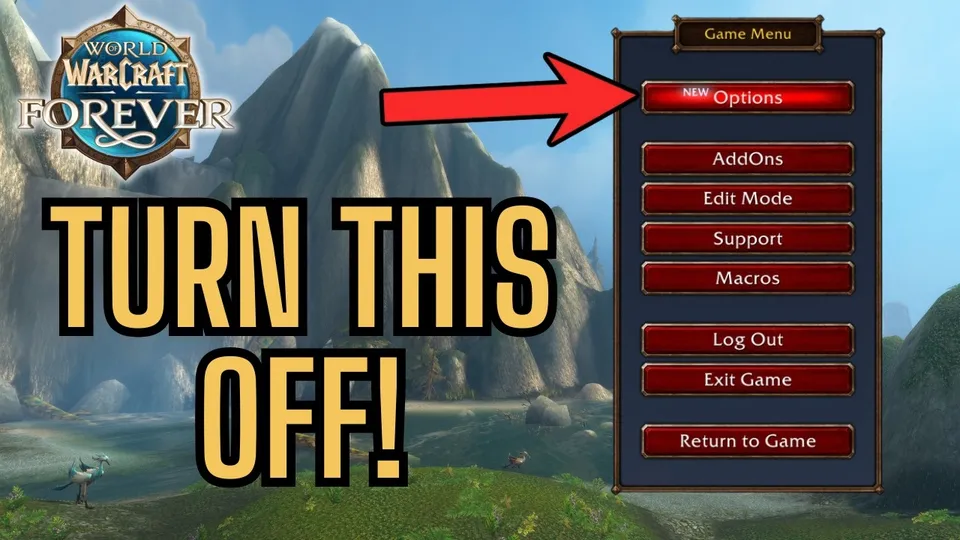
Share on WhatsApp (new tab)Share on Facebook (new tab)Share on X (new tab)A camera that recenters on its own, a voice repeating “out of range”, bags all over the screen: ten minutes in the options fix all that. Open them with Esc › Options: each setting shows which menu it’s in. These are Jurpi’s preferences, not rules.
- Level
- 1
- Faction
- Horde and Alliance
- Duration
- 10 minutes
How to do it
Step 1 : Basic options 0:13 (new tab)
In game : OptionsGameplayControls- Sticky TargetingOnPreferenceClicking the scenery no longer drops your target. Esc clears it.
- Auto LootOnRecommendedAll the loot in one click. Hold Shift to flip it once.
- Combine BagsOnRecommendedAll your bags in one window.
Step 2 : Interactions 0:35 (new tab)
In game : OptionsGameplayKeybindingsTargeting- Interact With MouseoverAltMouse Wheel UpAltMouse Wheel DownPreferenceTalk to NPCs and loot whatever is under your cursor; the wheel alone still zooms.
- Interact With TargetYour pickPreferenceNPC hidden by the crowd? /target <name>, then this key.
Step 3 : Raid Frames 1:25 (new tab)
In game : OptionsGameplayInterfaceRaid Frames- Display Power BarsOnRecommendedEveryone’s mana, rage or energy.
- Display Class ColorsOnRecommendedSpot each class at a glance.
- Display PetsOnRecommendedPets get their own frame.
- Display Health TextHealth PercentagePreferenceEasiest to read for Jurpi; the other modes work too.
Step 4 : Action Bars and Edit Mode 1:41 (new tab)
- In game : OptionsGameplayAction BarsAction Bars 2, 3 and 4OnPreferenceAt least four bars; more depending on your layout.
Step 5 : Click Casting 2:15 (new tab)
In game : OptionsGameplayKeybindingsOpen Click Casting and bind a spell to a click, alone or with Ctrl, Alt or Shift. The video’s example, ideal for healers:
- Healing WaveShiftLeft ClickPreferenceClick an ally’s frame: the heal lands on them.
Step 6 : Loot, camera and combat 3:01 (new tab)
- In game : OptionsGameplayControlsCameraCamera Following StyleNever adjust cameraStrongly recommendedThe video’s top tip: the camera stops recentering on its own.
- In game : OptionsGameplayCombatShow Silhouette when ObscuredOnRecommendedYou see your character behind walls.
- In game : OptionsGameplayCombatDo Not Flash Screen at Low HealthOnPreferenceTick it: no more red flashing.
- In game : OptionsGameplayInterfaceDisplayStatus TextBothRecommendedValue and percentage on your bars.
- In game : OptionsGameplayControlsOpen Loot Window at MouseOnPreferenceLoot opens under your cursor.
- In game : OptionsGameplayCombatSelf HighlightCircleIconOutlinePreferenceTo spot yourself in a busy fight: one, two or all three.
Step 7 : Sound and movement 4:23 (new tab)
- In game : OptionsSystemAudioError SpeechOffPreferenceNo more “out of range” or “not enough mana” on every cast.
- In game : OptionsSystemAudioDialogOffPreferenceIf repeated NPC lines wear you down.
- In game : OptionsAccessibilityAudio AssistAudio AssistOffPreferenceKeep it if it helps you.
- In game : OptionsGameplayKeybindingsMovement KeysToggle AutorunUp ArrowPreferenceAn easy key to run without holding anything.
Step 8 : Nameplates 4:59 (new tab)
- In game : OptionsGameplayNameplatesStacking Nameplates · Enemy UnitsOnRecommendedA pack’s nameplates no longer overlap.
- In game : OptionsGameplayNameplatesAlways Show NameplatesOnRecommendedEnemies keep their nameplate, even out of combat.
- In game : OptionsGameplayNameplatesNamesNPC NamesAll NPCsRecommendedEvery NPC’s name above its head.
- In game : OptionsGameplayKeybindingsTargetingShow All NameplatesCtrlVPreferenceShortcut from the video; Shift + V for friendlies.
Nameplate style: Jurpi picks Block, a little larger.
Step 9 : Handy options 6:11 (new tab)
- In game : OptionsGameplayAction BarsShow Numbers for CooldownsOnRecommendedThe time left shows on each spell.
- In game : OptionsGameplayInterfaceDisplayShow Free Bag SpaceOnPreferenceYour free slots on the bag icon.
- In game : OptionsGameplayKeybindingsPing SystemPing SystemF5PreferencePoint out an enemy or a spot to your group (key given in the video).
Step 10 : Console commands 6:41 (new tab)
Type them in chat. Jurpi shows them but doesn’t vouch for them on Forever:
/console ffxGlow 0No longer works, per the video Used to remove the full-screen glow; according to the video, it no longer does anything on Forever.
/console ResampleAlwaysSharpen 1Not tested on Forever Sharper image according to the video. Set it back to 0 if you don’t like it.
Step 11 : Graphics and stability 7:05 (new tab)
- In game : OptionsSystemGraphicsAdvancedGraphics APIDirectX 11DirectX 12If the game crashesGame crashing? Try the other one; neither is best everywhere.
- In game : OptionsSystemGraphicsAdvancedGraphics CardAuto DetectIf the game crashesCheck it’s your main graphics card.
- Character ModelsClassicHDPreferencePurely a matter of taste.
And to taste: Gamma a bit higher if you struggle in the dark, Output Device, Effects and Music.
Estimate your FPS with Config.wtf
Result
Your camera stays put, the screen and sound calm down, and your bars tell you everything at a glance. Now you can install your addons on a clean base.
Option names taken from the Forever client’s text: a label may change with an update. Nothing here is a Blizzard requirement.
On video
Sources
Jurpi (YouTube) · The ONE Setting You Need to Change in WoW Forever (new tab) · wago.tools · GlobalStrings (noms officiels des options) (new tab) · Wowhead · Healing Wave (new tab)